
Supplier guide: apply, list supplies, and set up fulfillment
Apply for supplier access, prepare your storefront, create supply listings, and configure supplier operations and fulfillment.
3 min read
Supplier guide · Updated Oct 18, 2026
Before you start
- A United States-based supplier business.
- Business verification documents and accurate inventory, unit, pricing, and fulfillment information.
What you will be able to do
- Submit the supplier application without mistaking signup for verification.
- Create and review supply drafts.
- Save business hours, locations, and fulfillment settings.
Suppliers offer production supplies: blanks, raw materials, packaging, tools, accessories, and other supported inputs. Finished creator-designed goodies use the creator listing workflow.
Step by step
Step 1: Create your account
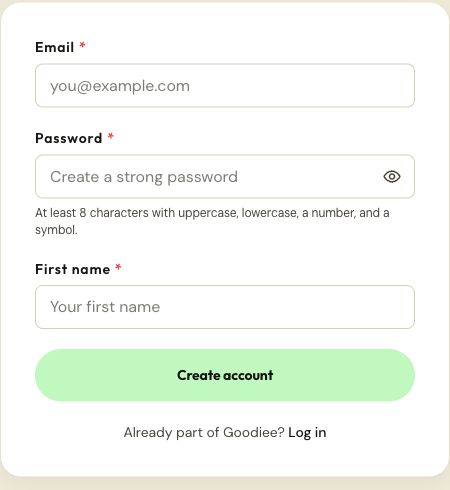
Open Create account. Enter Email, Password, and First name. Use at least eight characters with uppercase, lowercase, a number, and a symbol, then choose Create account. If you already have an account, use Log in instead.
Create account →Check: You see either the confirmation-email message or role onboarding; do not create a second account to add another role.
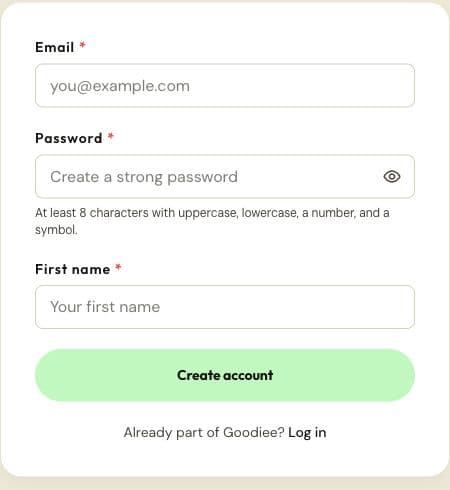
The public account form. One account can later hold multiple roles. Actual site capture · 2026-10-18 · Source screen · Select image to enlarge Step 2: Confirm your email when prompted
Use the confirmation link sent to the address you entered. Return to Goodiee and sign in if needed. A saved signup intent suggests a role; it does not approve a maker or supplier application.
Log in →Check: You can reach your dashboard or the role onboarding screen with your own account.
Step 3: Start the Supplier application
Open Settings → Roles and use Start application under Supply materials. Supply access is enabled through application verification, not by a buyer or creator checkbox.
Open this screen →Check: You are on your supplier application page.
Step 4: Complete the business and fulfillment sections
Provide the legal and public business names, contact, United States address, supply categories, fulfillment choices, processing time, inventory model, and ship-from locations. Upload the required business evidence and review the agreements.
Open this screen →Check: Every required section is complete before submission.
Step 5: Submit and track verification
Choose Submit application in Review. Return to this page to see Submitted, a verified outcome, or requested corrections. Do not try to publish inventory while the site still requires application approval.
Check: The application has a recorded status, rather than only a saved draft.
Step 6: Complete your public profile
Use a recognizable supplier name, public @handle, profile imagery, About information, and relevant links. Do not put private verification documents or a private home address in public profile text.
Open this screen →Check: The public profile preview contains only information you intend customers to see.
Step 7: Configure Supplier Operations
Confirm your contact, business address, shipping or pickup choices, processing time, tracking answer, inventory model, ship-from locations, and weekly availability. The operations contact is not your sign-in email setting.
Open this screen →Check: The operations form shows saved settings.
Step 8: Create one accurate supply listing
Use My supplies to start a private supply draft. Enter its category, specifications, selling unit, included quantity, purchase price, minimum order quantity, lead time, stock, and images, then submit through its review controls.
Open this screen →Check: Customers can distinguish one selling unit from the individual pieces inside it.
Step 9: Import more drafts and manage recorded orders
Use CSV once your first unit and category choices are correct. Review imported drafts individually. Use supplier Orders for confirmed supply orders and the fulfillment controls shown there; a saved bag is not a paid order.
Open this screen →Check: Draft counts, listing statuses, available quantities, and order statuses match your records.
Next guides
Reference this resource
Cite this guide
Use the reference below, or import a file into your reference manager to apply your required citation style.
Goodiee. (October 18, 2026). Supplier guide: apply, list supplies, and set up fulfillment. https://goodiee.com/learn/supplier-getting-started
Article URL: https://goodiee.com/learn/supplier-getting-started