
Profile manual: update, decorate, and share your page
Update your name and handle, crop profile images, choose colors and wallpaper, add social links, and curate your badge showcase.
3 min read
All roles · Updated Oct 18, 2026
Before you start
- A signed-in account.
- Images and public information you have permission to share.
What you will be able to do
- Understand Details, Images, Appearance, Social links, and Badge bank.
- Save and preview a complete public profile.
- Keep account settings separate from public profile details.
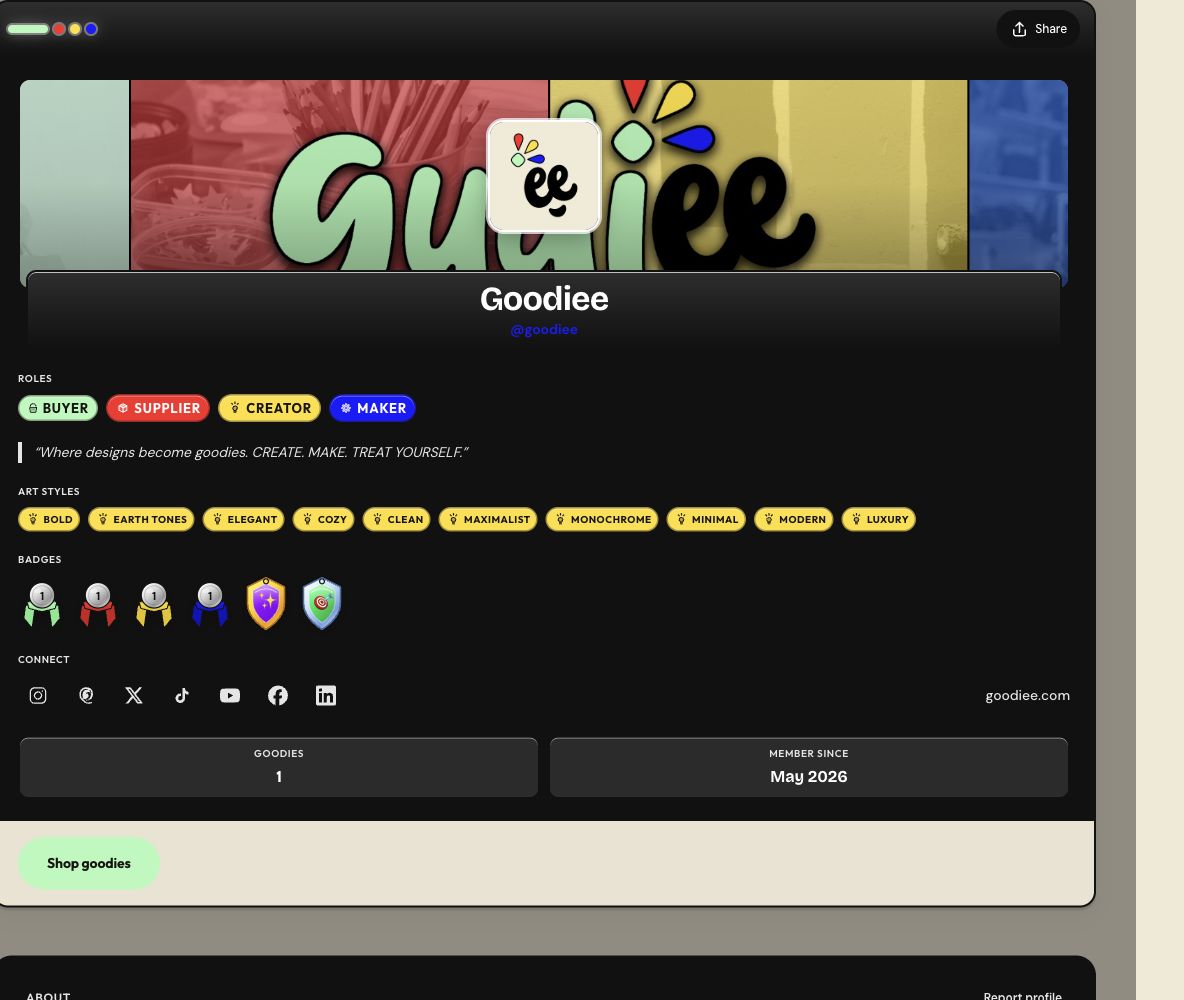
Profile editing is consolidated at Settings → Profile. The sticky section bar contains Details, Images, Appearance, Social links, Badge bank, and Save changes. Older profile-settings URLs redirect into this page.
Step by step
Step 1: Open the complete profile editor
Sign in and open Settings → Profile. Use the section bar to jump between areas without leaving the editor.
Open this screen →Check: You see the profile section bar and the public profile preview.
Step 2: Edit Details and choose your @username
Enter the display name people should recognize, a bio, and the available About, location, and website details. Choose a public username using lowercase letters, numbers, and underscores. Wait for the availability feedback before treating it as yours.
Check: The username is accepted, and your biography describes the role or work you want to present.
Step 3: Upload and crop your profile photo
Go to Images. Choose your photo, reposition it, and adjust the zoom in the crop dialog before confirming. Use a clear face, studio mark, or brand image. The original avatar file limit is 8 MB; follow the accepted formats and crop feedback on screen.
Check: The image remains recognizable at small profile-card size.
Step 4: Add a cover image
Choose a cover or banner image and use the crop controls to position the important content. The original cover file limit is 10 MB. Keep text away from areas that disappear when the banner changes size on mobile.
Check: The preview shows the intended crop without hiding important information.
Step 5: Decorate Appearance
Choose the colors and other appearance options shown in the editor. Use the live preview while adjusting them. Keep body text and links readable against the selected surfaces rather than selecting colors only for decoration.
Check: Your text, controls, and profile content remain easy to read in the preview.
Step 6: Choose a page wallpaper and placement
Upload a wallpaper only if you want an image behind the profile window. Choose Tile, Cover, or Center using the supplied controls. Wallpaper upload/removal and placement controls save their own changes, so wait for their success message as well as saving the rest of your profile.
Check: The preview uses the intended placement, and no upload or save error is visible.
Step 7: Add Social links
Use the supported social-link fields and paste your public profile URLs. Check each address for spelling and the intended account. A website or social link is not a place to paste a password, access token, or private document link.
Check: Every link opens the intended public destination.
Step 8: Curate your Badge bank
Open Badge bank to inspect earned and available badges. Use the available showcase controls to choose which earned badges appear on your profile. Displaying a learning badge does not grant a verified Maker or Supplier role.
Check: Your showcase contains the earned badges you intended to display.
Step 9: Save and inspect the public result
Choose Save changes in the sticky profile bar and wait for Saved. If it says Check errors, fix the reported section and save again. Open your public profile and inspect the result, including the mobile-sized preview where available.
Check: The public page, images, appearance, and links reflect the saved version.
If something is wrong
- If a handle is taken, choose an available variant rather than repeatedly saving the same handle.
- If an image upload fails, check the file type and size, then retry the crop/upload and wait for confirmation.
- Profile contact and display details do not change your login credentials. Use Account & security for account email and password changes.
- Maker and Supplier business contacts and operational addresses belong in their Operations forms.
Related guides
Reference this resource
Cite this guide
Use the reference below, or import a file into your reference manager to apply your required citation style.
Goodiee. (October 18, 2026). Profile manual: update, decorate, and share your page. https://goodiee.com/learn/customize-your-goodiee-profile
Article URL: https://goodiee.com/learn/customize-your-goodiee-profile