
Learn manual: courses, references, activities, and progress
Navigate courses, master guides, platform manuals, articles, and calculators, then track completion and return to your learning progress.
3 min read
All roles · Updated Oct 18, 2026
Before you start
- A browser; sign in when prompted to save or synchronize your learning progress.
What you will be able to do
- Choose between a course and a reference lookup.
- Recognize coming-later content.
- Complete released activities and find your next task.
Step by step
Step 1: Start at the Learn overview
Use Learn in the site navigation. The Learn bar links to Overview, Courses, Library, Platform, Articles, and Calculators. These links describe different kinds of resources rather than one long lesson sequence.
Open this screen →Check: You can identify the section that matches your current task.

The Learn section bar separates courses, references, platform instructions, articles, and calculators. Actual site capture · 2026-10-18 · Source screen · Select image to enlarge Step 2: Choose a released course
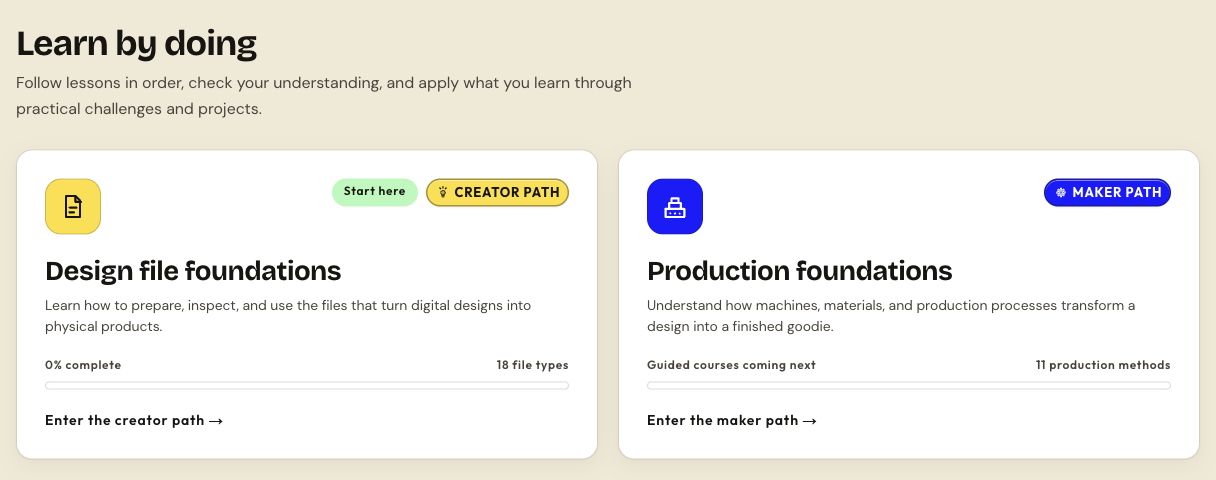
In Learn by doing, Design file foundations introduces production file formats. Production foundations covers methods, but a card marked Guided courses coming next is not a promise that every guided activity is already available. Follow the labels on the card you open.
Open this screen →Check: The path you choose has the lesson or activity you intend to use.
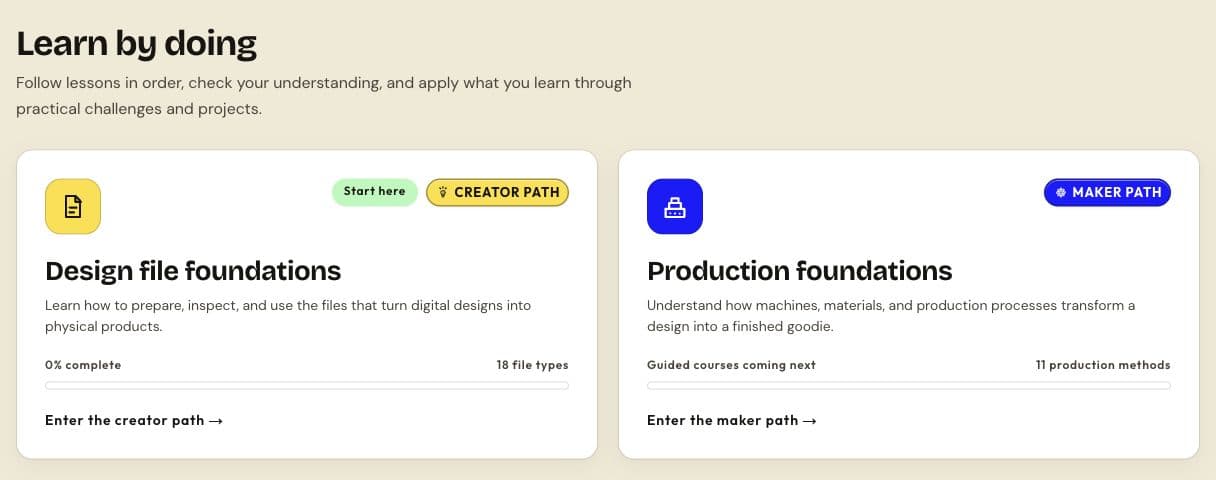
Use the course cards to choose a learning path. Availability labels distinguish released activities from upcoming courses. Actual site capture · 2026-10-18 · Source screen · Select image to enlarge Step 3: Work through the topic activities
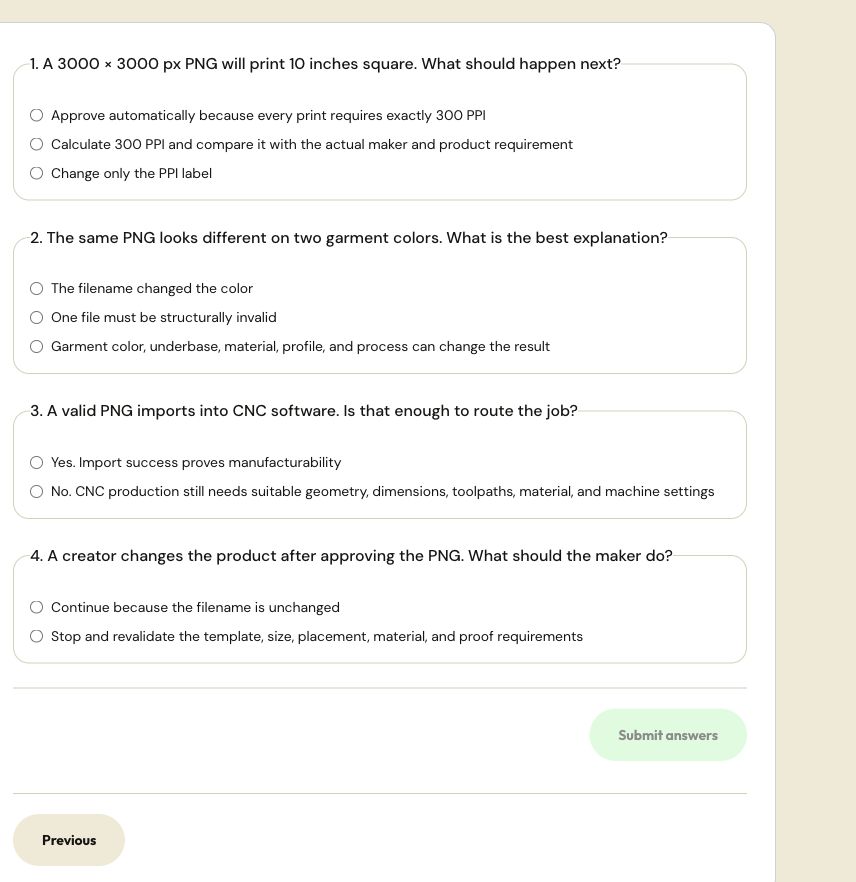
Open a file type or available method. Read the lesson and complete the activities shown for that topic. Use the actual quiz, challenge, or project controls, rather than assuming that opening a page completes it.
Check: The site records the completed activity and any resulting progress change.
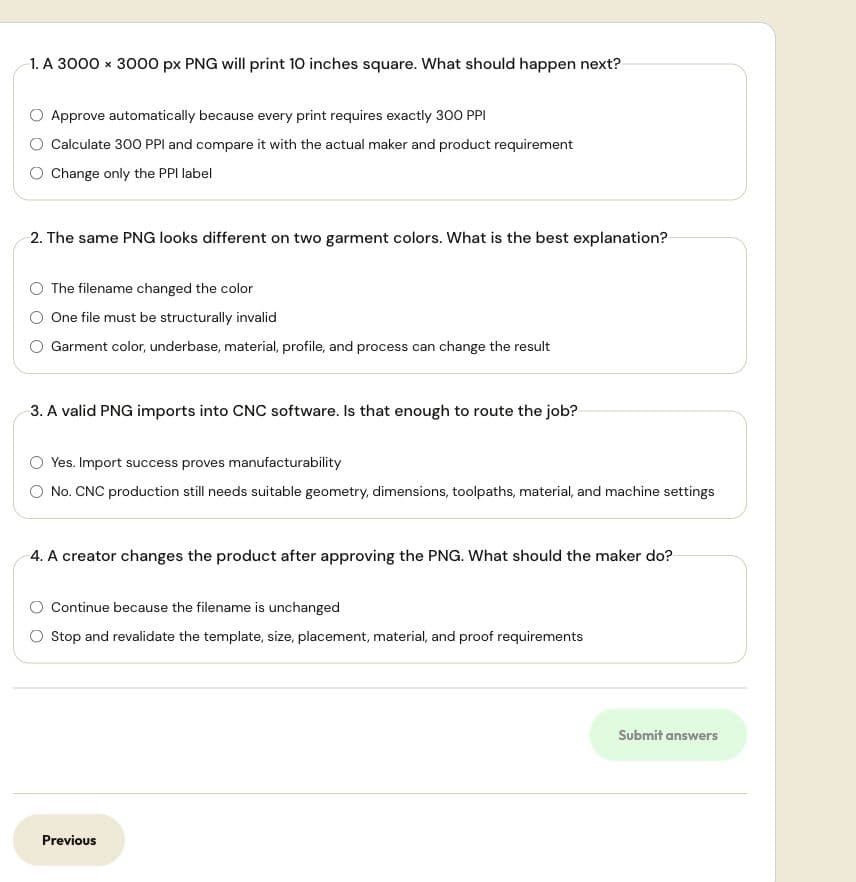
A released quiz uses explicit answers and submission. This capture contains no submitted answers or claimed completion. Actual site capture · 2026-10-18 · Source screen · Select image to enlarge Step 4: Use Library for a specific reference
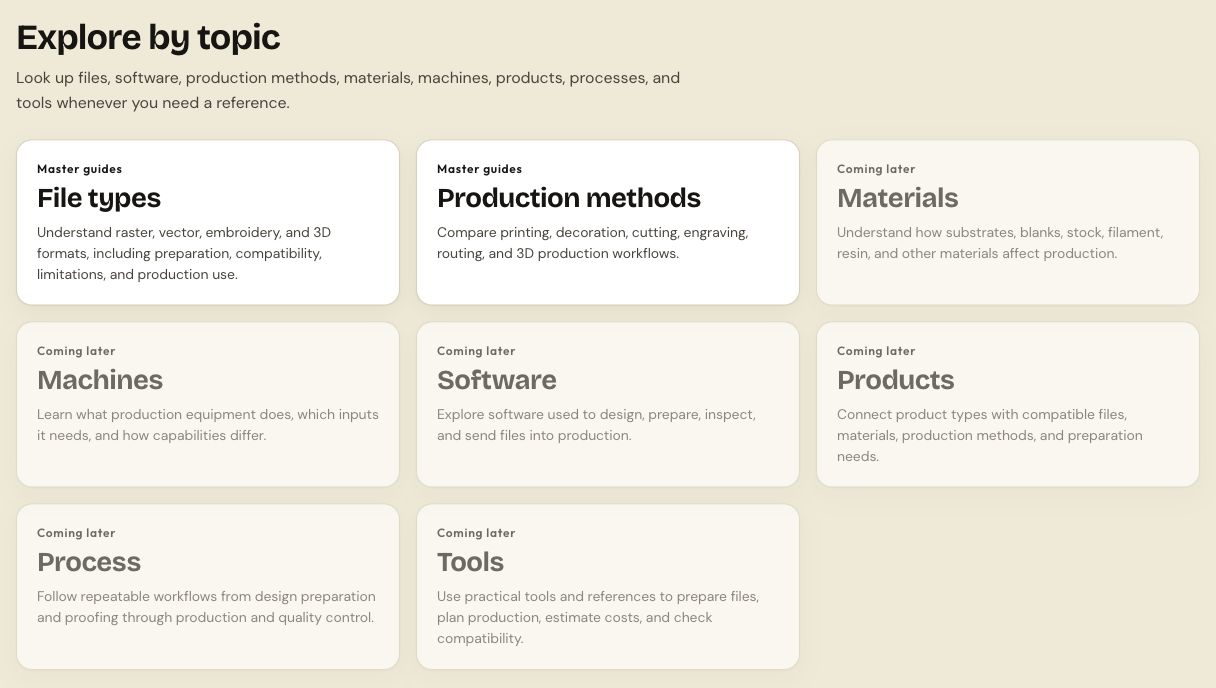
Open File types or Production methods under Explore by topic to look up specifications, compatibility, preparation, and limitations. Areas labelled Coming later are not released reference libraries yet.
Open this screen →Check: Your reference describes the exact file or method used for your work.
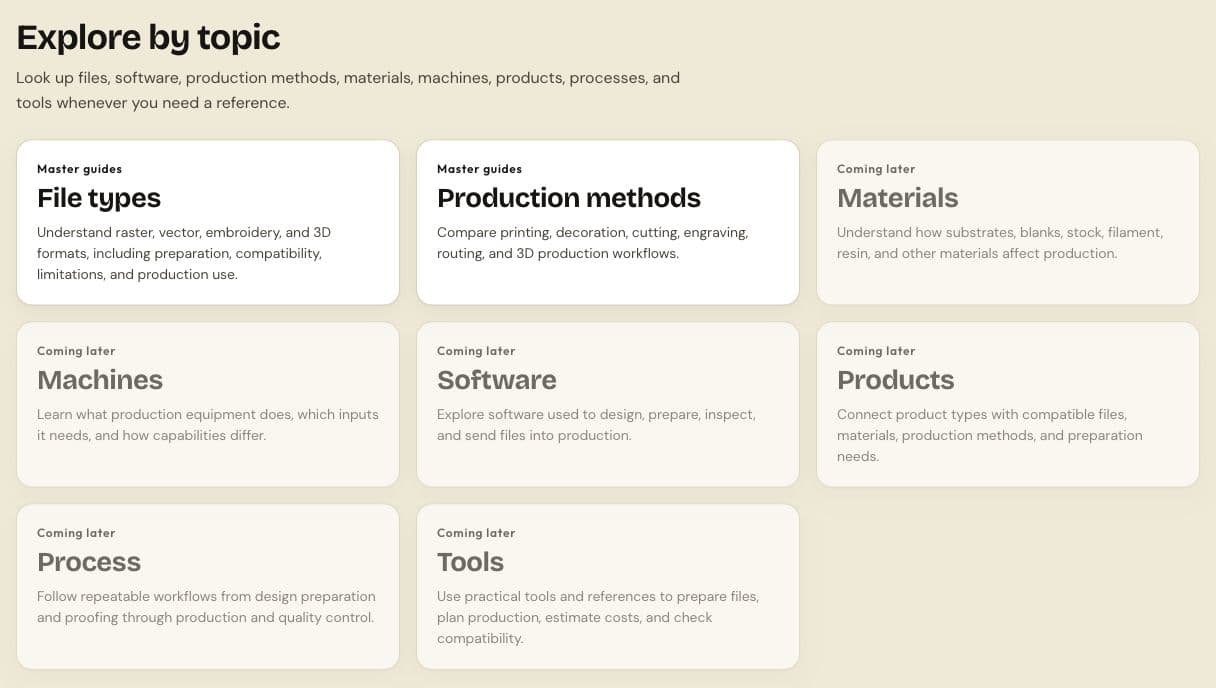
Use released master-guide sections as references and respect the Coming later labels on unreleased areas. Actual site capture · 2026-10-18 · Source screen · Select image to enlarge Step 5: Use Platform guides for site tasks
Open Platform when you need account, profile, listing, application, or operations instructions. Choose your role or a specific task guide; use its prerequisites and the Check line under each step to confirm progress.
Open this screen →Check: The guide matches the screen you are trying to use.
Step 6: Read articles and inspect their sources
Open Articles for explanatory and research reading. Use the source links to inspect evidence and Cite article to copy a reference or download a reference-manager file. The presence of a source list does not replace checking whether a claim fits your situation.
Open this screen →Check: You can distinguish the article's explanation from its cited source.
Step 7: Use calculators with your own inputs
Open Calculators to choose a compatible tool, such as resolution, production compatibility, or pricing. Enter the units and assumptions requested by the tool. Calculator results are estimates or references, not a substitute for machine, material, or listing requirements.
Open this screen →Check: The inputs, units, and output match your intended use.
Step 8: Return to progress and achievements
Return to Learn to use the progress and Continue learning controls when available. Sign in when a progress or achievement page requests it. Use the badge guide to understand eligible activities, thresholds, and what is displayed on your profile.
Open this screen →Check: Your completed activities are still recorded in the signed-in context you intend to use.

Progress and availability
- Reading reference articles, master-guide pages, or calculator pages does not award base XP in the current rules.
- Released lessons, quizzes, challenges, projects, completed paths, and eligible bonuses use the learning progression rules.
- Do not repeatedly mark the same activity complete to expect fresh XP; completion and quiz improvements have their own recorded rules.
- Local progress and signed-in progress can differ until synchronization succeeds. Read any save or sign-in message before leaving the activity.
Reference this resource
Cite this guide
Use the reference below, or import a file into your reference manager to apply your required citation style.
Goodiee. (October 18, 2026). Learn manual: courses, references, activities, and progress. https://goodiee.com/learn/use-goodiee-learn
Article URL: https://goodiee.com/learn/use-goodiee-learn