
Buyer guide: join, discover, save, and order
Create a Goodiee account, find creators and supplies, save favorites, and understand checkout and order tracking.
3 min read
Buyer guide · Updated Oct 18, 2026
Before you start
- An email address you can access.
- A delivery address before attempting an available checkout.
What you will be able to do
- Use your included Buyer role.
- Find and save relevant goodies or supplies.
- Recognize the difference between a saved bag, a paid order, and production.
Buyer is included with every account. You can explore public listings before signing in; favorites, collections, checkout, and your order records use your account.
Step by step
Step 1: Create your account
Open Create account. Enter Email, Password, and First name. Use at least eight characters with uppercase, lowercase, a number, and a symbol, then choose Create account. If you already have an account, use Log in instead.
Create account →Check: You see either the confirmation-email message or role onboarding; do not create a second account to add another role.
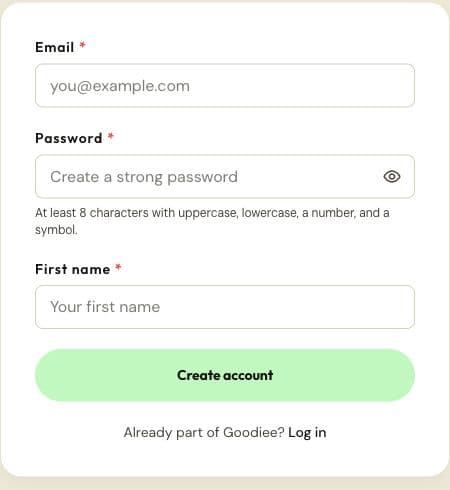
The public account form. One account can later hold multiple roles. Actual site capture · 2026-10-18 · Source screen · Select image to enlarge Step 2: Confirm your email when prompted
Use the confirmation link sent to the address you entered. Return to Goodiee and sign in if needed. A saved signup intent suggests a role; it does not approve a maker or supplier application.
Log in →Check: You can reach your dashboard or the role onboarding screen with your own account.
Step 3: Keep Buyer and add only the roles you need
On role onboarding, Buyer is already selected. Continue to your dashboard. You can later add Creator or start a Maker or Supplier application in Settings → Roles.
Open this screen →Check: Buyer remains included; a second role does not require a second account.
Step 4: Choose Goodies or Supplies
Open Marketplace. Goodies are creator products; Supplies are production inputs such as blanks, materials, tools, or packaging. Use the catalog appropriate to what you want to receive.
Open this screen →Check: The listing, selling unit, and seller match your intended purchase.
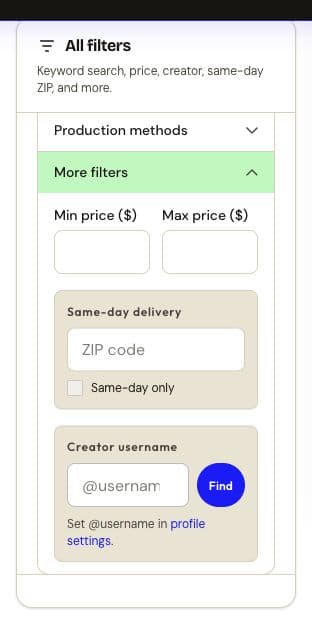
More filters expands the price, same-day ZIP, and creator-handle controls. Same-day only is disabled until its prerequisites are met. Actual site capture · 2026-10-18 · Source screen · Select image to enlarge Step 5: Search and refine the results
Search using a product, style, process, or creator. Use the filters and Sort by controls currently available for that catalog. Clear a filter if no results match; an empty result does not mean every maker or supplier is unavailable.
Check: The selected filters describe your needs without excluding useful results.
Step 6: Review the listing before adding it
Read its description, images, options, price, production details, and any delivery estimate. For supplies, check whether the price is for a piece, pack, case, roll, or other selling unit and whether a minimum order quantity applies.
Check: You understand the quantity and options you are adding, rather than inferring them from the photograph.
Step 7: Save resources and organize collections
Use the save control on an item or article. Open Favorites to return to saved resources or organize them into collections. Saving an item is separate from buying it.
Open this screen →Check: The resource appears in Favorites; no purchase is implied by a saved item.
Step 8: Review the Goodie Bag and the checkout state
Open your Goodie Bag, review quantities and options, and follow the checkout offered on the page. If it says checkout is not live, keep the bag saved and return later. Do not treat a checkout preview, open payment screen, or cancelled payment as an order confirmation.
Open this screen →Check: Only a confirmed paid order moves into the paid-order workflow.
Step 9: Track a confirmed order
Use Orders to open the order and follow its recorded production and shipping updates. A maker assignment, production start, and shipping update are different events. Use the available tracking details for a shipped order and the eligibility shown on the site before writing a purchase review.
Open this screen →Check: You are reading the correct order and its actual status.
Useful next guides
Reference this resource
Cite this guide
Use the reference below, or import a file into your reference manager to apply your required citation style.
Goodiee. (October 18, 2026). Buyer guide: join, discover, save, and order. https://goodiee.com/learn/buyer-getting-started
Article URL: https://goodiee.com/learn/buyer-getting-started