
Maker guide: apply, verify, and prepare for gigs
Create your account, submit a maker application, register equipment, set production capacity, and understand matched gigs.
3 min read
Maker guide · Updated Oct 18, 2026
Before you start
- A United States-based maker operation.
- Your real equipment, supported methods and materials, finished-work photographs, and realistic availability.
What you will be able to do
- Find the application and distinguish submitted from approved.
- Set up the operations used for matching.
- Review offers and keep production states accurate.
A maker role is application-gated. Creating an account or choosing a maker signup intent does not approve production access or guarantee gigs.
Step by step
Step 1: Create your account
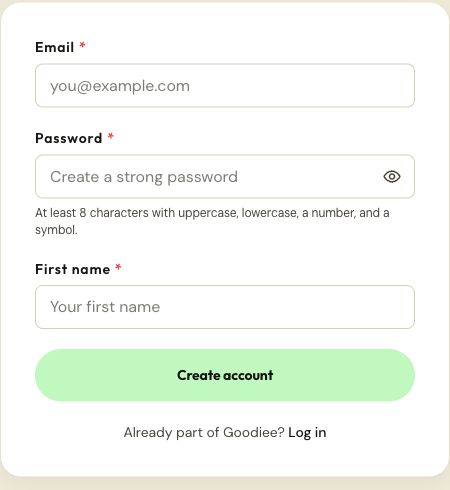
Open Create account. Enter Email, Password, and First name. Use at least eight characters with uppercase, lowercase, a number, and a symbol, then choose Create account. If you already have an account, use Log in instead.
Create account →Check: You see either the confirmation-email message or role onboarding; do not create a second account to add another role.
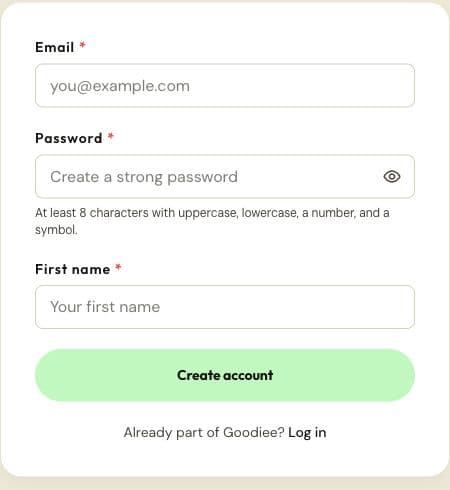
The public account form. One account can later hold multiple roles. Actual site capture · 2026-10-18 · Source screen · Select image to enlarge Step 2: Confirm your email when prompted
Use the confirmation link sent to the address you entered. Return to Goodiee and sign in if needed. A saved signup intent suggests a role; it does not approve a maker or supplier application.
Log in →Check: You can reach your dashboard or the role onboarding screen with your own account.
Step 3: Start the Maker application
Open Settings → Roles and choose Start application for Make products, or open the Maker application directly. Review the requirements before entering your business, equipment, and production information.
Open this screen →Check: You see the maker application rather than a self-service verified-role checkbox.
Step 4: Prepare and submit accurate evidence
Complete the application sections, register equipment for each selected method, and provide the requested photographs and agreements. Use the dedicated application manual for the section-by-section checklist.
Open this screen →Check: The review section has no outstanding required-field errors.
Step 5: Wait for a recorded decision
Submitted or Under review means staff are still assessing the application. Return to the application page for its status and notes. If updates are requested, correct the relevant information and use the resubmission action offered there.
Open this screen →Check: Approval is shown by the site before you expect production access.
Step 6: Set up Maker Operations after approval
Confirm contact information, business address, methods, materials, product capabilities, equipment, capacity, fulfillment, availability, and gig selection. Keep the saved production hours, lead time, and weekly schedule within what you can actually complete.
Open this screen →Check: The operations page reports your settings as saved.
Step 7: Complete machine-specific verification when required
Follow any equipment verification instructions and challenge codes shown by the site. An approved maker application and an individual machine's verification status are different records.
Open this screen →Check: The machine and production method you intend to use have the status required for that work.
Step 8: Review matched offers before accepting
Open Gigs. Read the requirements, quantity, ship-by date, offered production amount, and available assets. Accept only work you can perform, using the offer controls before expiry. Empty offers are not an assurance of a fault or a promise of future orders.
Open this screen →Check: Accepted work appears in your assigned jobs.
Step 9: Keep fulfillment and availability current
Use the assigned job and its available fulfillment controls while producing the order and when it ships. Check the supplied address and add the required shipment details. If equipment fails or you are away, update availability and resolve existing commitments rather than assuming pausing removes them.
Check: Job states describe work actually done, and future capacity matches reality.
Next guides
Reference this resource
Cite this guide
Use the reference below, or import a file into your reference manager to apply your required citation style.
Goodiee. (October 18, 2026). Maker guide: apply, verify, and prepare for gigs. https://goodiee.com/learn/maker-getting-started
Article URL: https://goodiee.com/learn/maker-getting-started